AstrBot
Multi-platform chatbot and Agent framework that can connect to OpenAI-compatible model services.
AstrBot is an open-source, all-in-one Agent chatbot platform that seamlessly connects large model capabilities to mainstream instant messaging apps such as QQ, Feishu, DingTalk, and WeCom, building reliable and scalable conversational AI infrastructure for individuals, developers, and teams. Whether you need a personal AI companion, an intelligent customer service agent, an automation assistant, or an enterprise knowledge base, AstrBot lets you quickly build production-ready AI applications within the workflow of your instant messaging platform.
- Official website: https://astrbot.app
- Official documentation: https://docs.astrbot.app
- Project homepage: https://github.com/astrbotdevs/astrbot
How to Connect to Models Hub
AstrBot supports connecting to Models Hub as a model provider, allowing users to access and use various AI model services through Models Hub.
Configuration steps
Get your Models Hub API Key
After registering and logging in to Models Hub, click "Console" in the top navigation bar, click "Token Management", then click the "Add Token" button to create a new API Key. Select the appropriate permissions and click "Create".
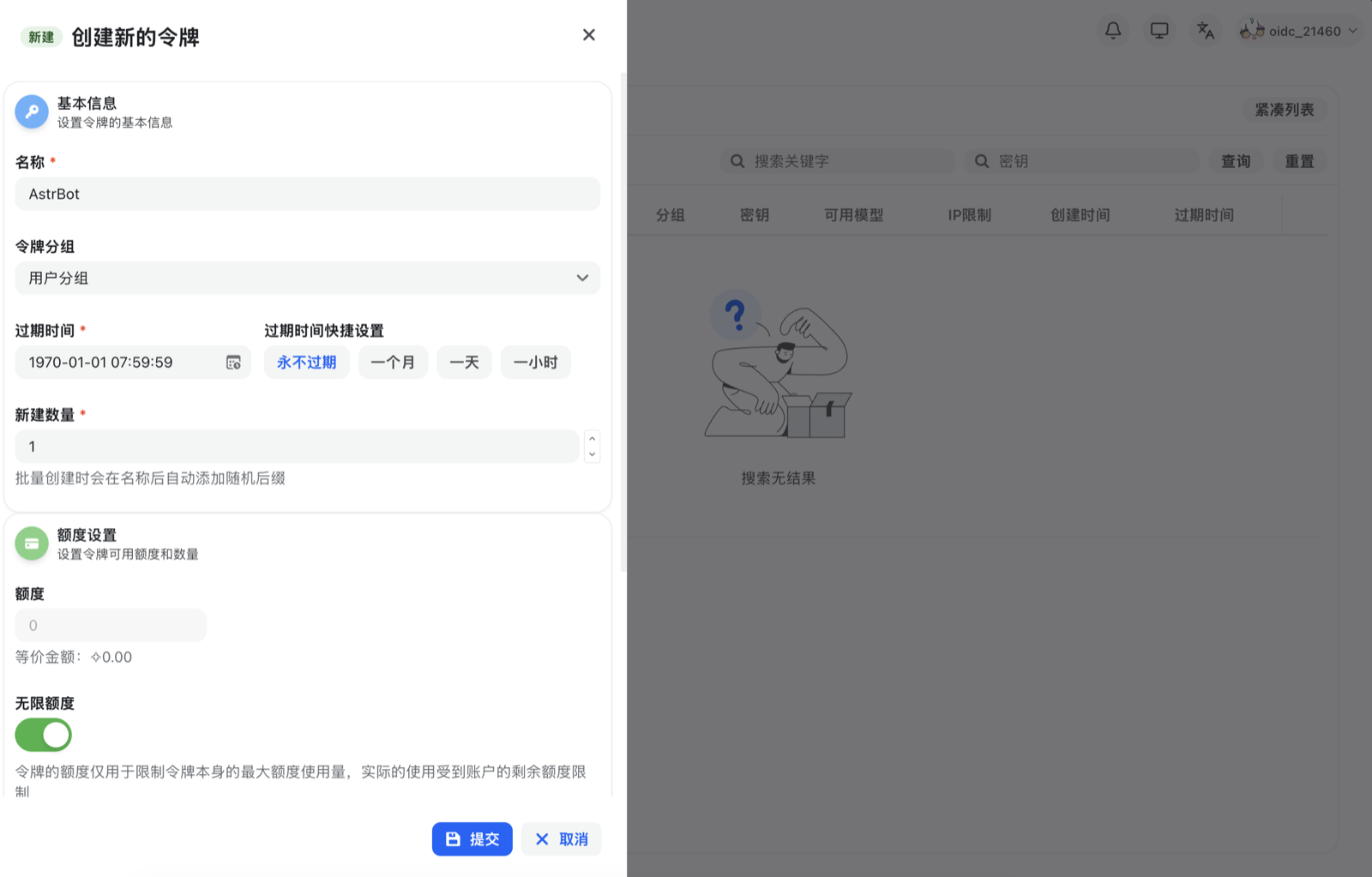
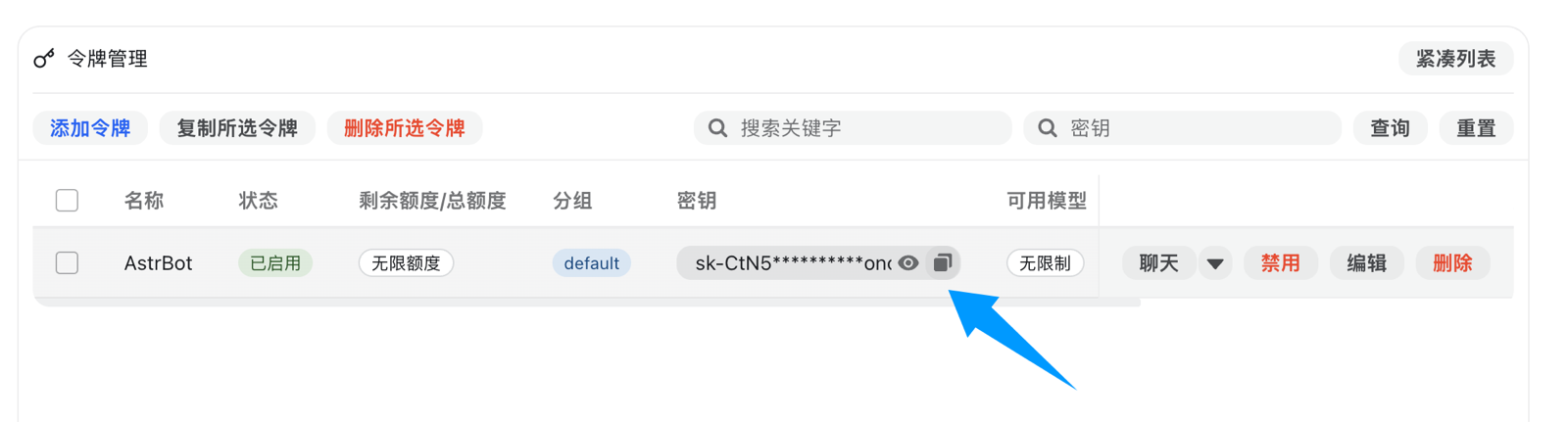
Once created successfully, click the copy button to copy the generated API Key.
Configure the Models Hub provider in AstrBot
Open the AstrBot admin panel, go to the "Model Providers" page, and click the "Add Model Provider" button.
Models Hub fully supports the OpenAI Chat Completion and Responses APIs, so click "OpenAI" to open the OpenAI provider configuration page.
In the dialog that appears, set the API Base URL to the Models Hub endpoint address. If you have deployed Models Hub locally, enter the local address, for example http://localhost:3000/v1. If you use a Models Hub service provided by a third party, enter the corresponding URL, for example https://modelsok.com/v1.
Then enter your API Key in the "API Key" field and click "Save".
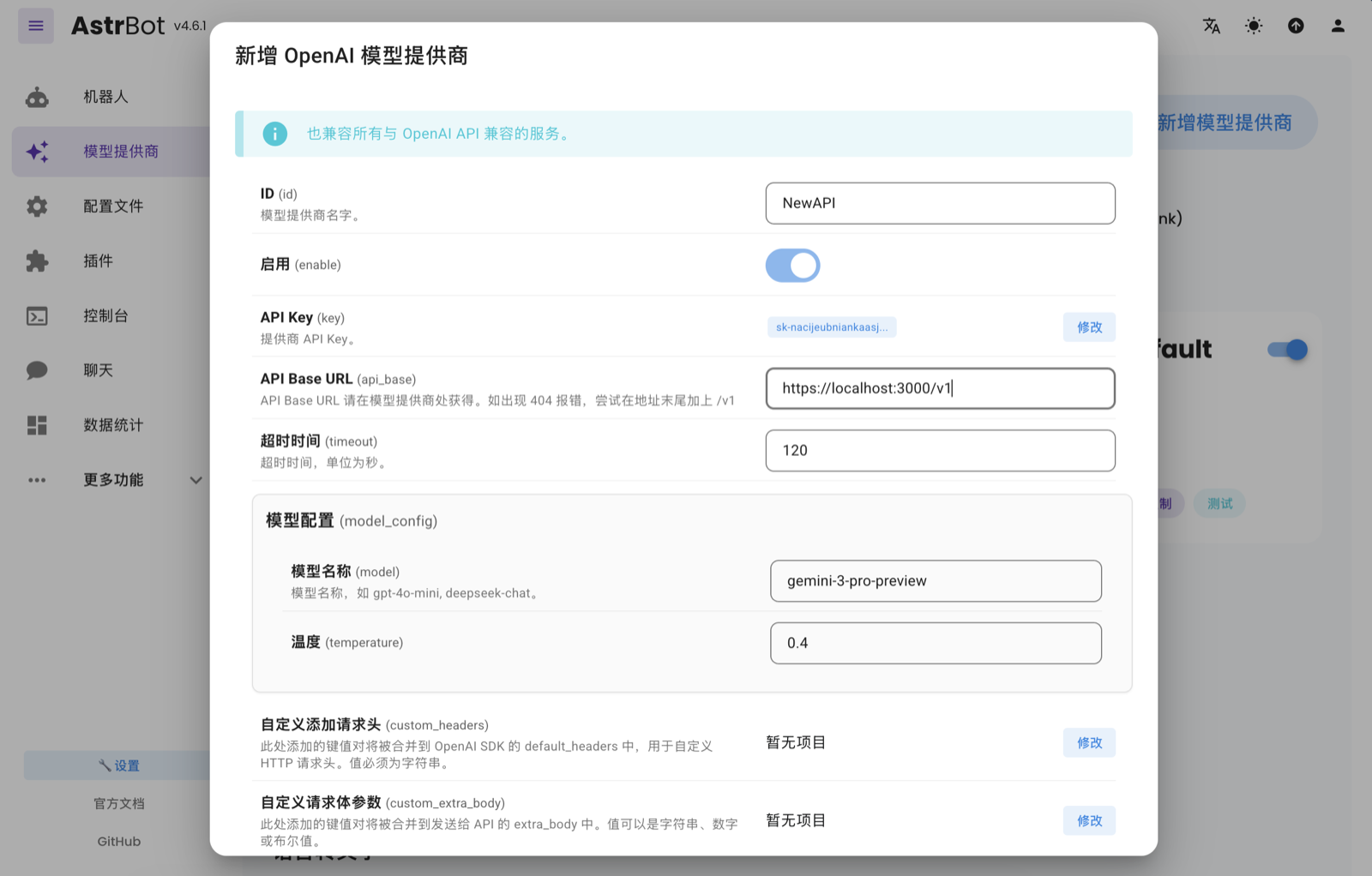
Click Save to complete the Models Hub provider configuration.
Apply the provider
Go to the "Configuration File" page, find the model section, change the "Default Chat Model" to the Models Hub provider you just created, and click "Save".
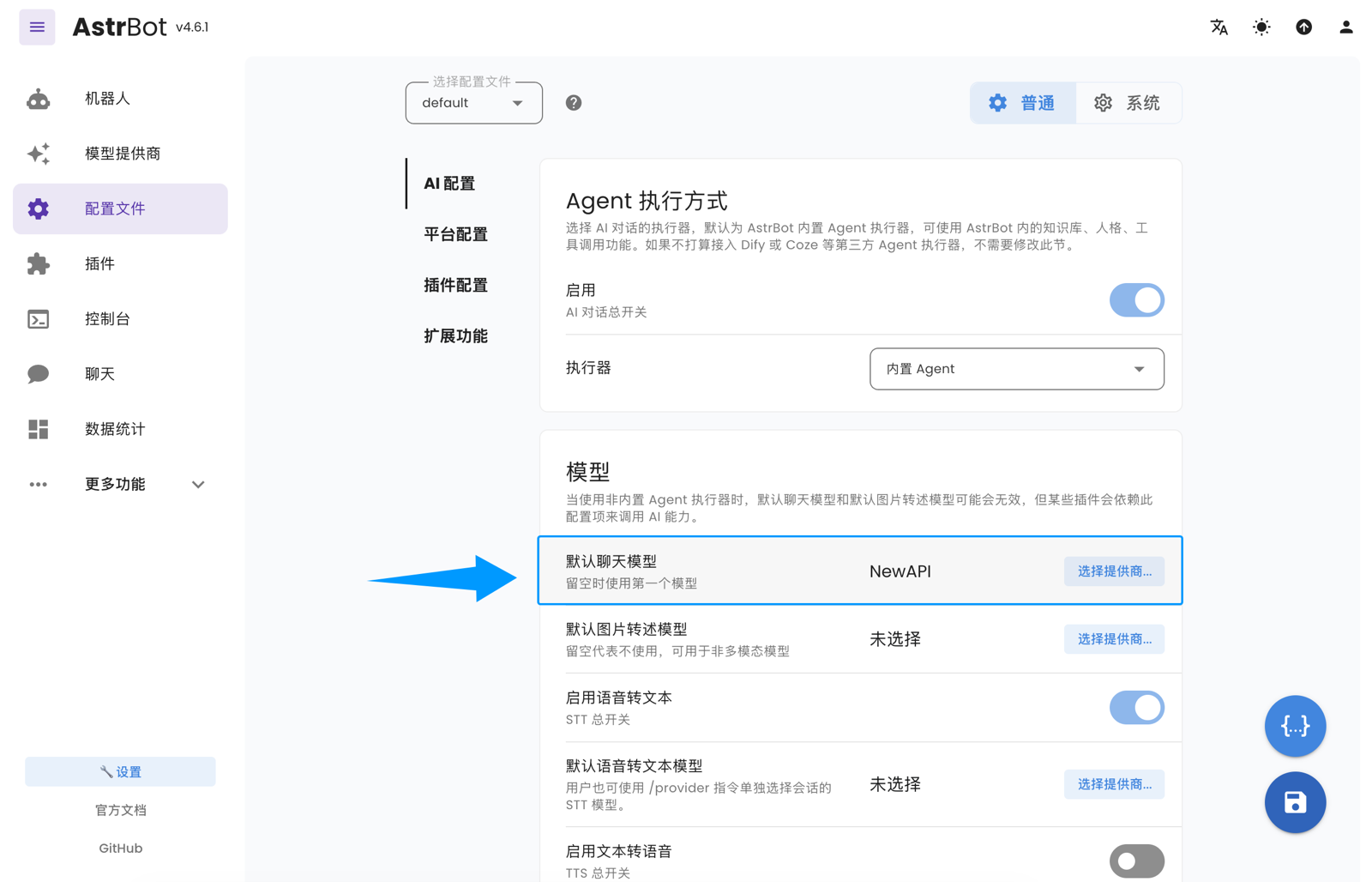
You have now successfully configured Models Hub as a model provider for AstrBot. You can now access and use the various AI model services offered by Models Hub through AstrBot.