Factory Droid CLI
An AI assistant for software engineering workflows, covering planning, development, and testing.
About the Project
Droid CLI is a command-line tool developed by Factory AI, designed to run as an AI software engineering agent. It lets users interact with various large language models through the terminal to build, debug, and refactor code, and even create complete applications.
- Official site: https://factory.ai/product/cli
- Official docs: https://docs.factory.ai/cli/getting-started/quickstart
Demo
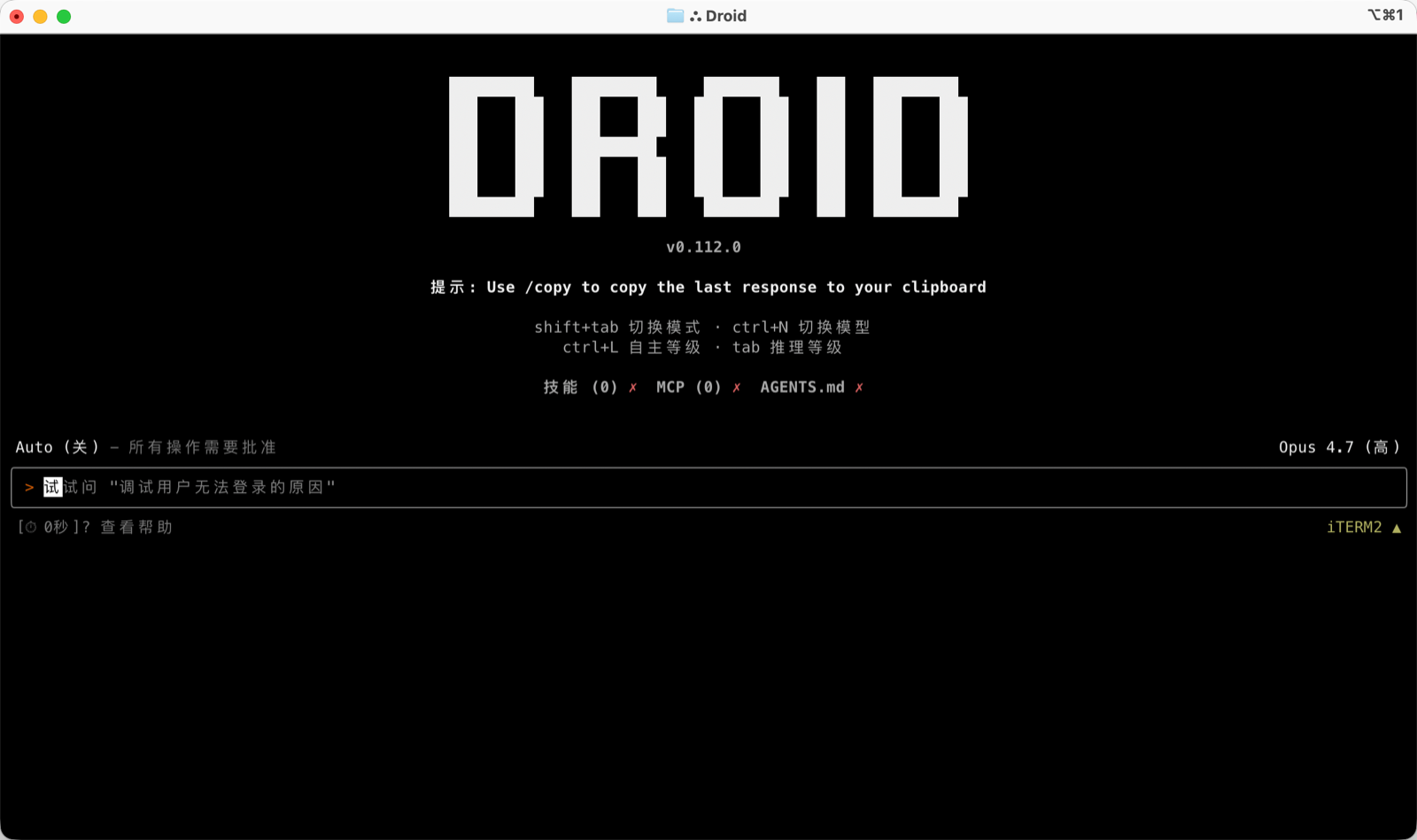
Features
| Category | Feature | Value/Capability | Example/Notes |
|---|---|---|---|
| Quick start and CLI | 30-second install; launch an interactive droid session in your project directory; supports macOS/Linux and Windows | Quickly integrates into your current project with no new tools needed | Windows install: `irm https://app.factory.ai/cli/windows |
| End-to-end feature development | Full automation from planning to implementation to testing; a transparent review process | Boosts delivery speed while keeping humans in control | Native diff viewing and approval flow (see "Transparent and Controllable") |
| Deep codebase understanding | Combines shared knowledge organized across the codebase, docs, and issue trackers; context-aware, improving over time | More accurate suggestions and changes | Continuously leverages knowledge across repos and docs |
| Engineering systems integration | Native integration with tools like Jira, Notion, and Slack; keeps development work in sync with team workflows | Reduces tool switching and information silos | "etc." indicates more integrations |
| Production-grade automation | Workflows reusable both locally and in CI/CD; enterprise-grade security and compliance built in | Consistency and auditability | Fits pipelines and enterprise environments |
| Enterprise-grade capabilities | Private deployment options, SOC-2 compliance, air-gapped environments | Meets security and compliance requirements | Security and quality first |
| Enhancing existing tools | Works in the terminal, IDEs, and existing development environments; no need to switch editors or learn a new interface | Preserves existing work habits with low migration cost | Deeply integrates with familiar tools |
| Transparent and controllable | Every decision is visible and reviewable; full oversight of code changes; native diff viewing and approval workflow | Reduces risk and improves controllability | Review-friendly and traceable |
| Model flexibility | Not locked into a single AI provider; choose the best model per task; consistent organization-level behavior and memory | Optimal trade-off between performance and cost | Supports multi-model routing |
| Next steps and resources | Quickstart, Common Use Cases, IDE Integration, Configuration, AGENTS.md | Easy to put into practice | See the page's "Next steps/Additional resources" |
How to Configure the AI Model
Windows: Step-by-Step Guide
1. Open the terminal and install Factory Droid CLI
Official one-click install command:
One-click install command
irm https://app.factory.ai/cli/windows | iex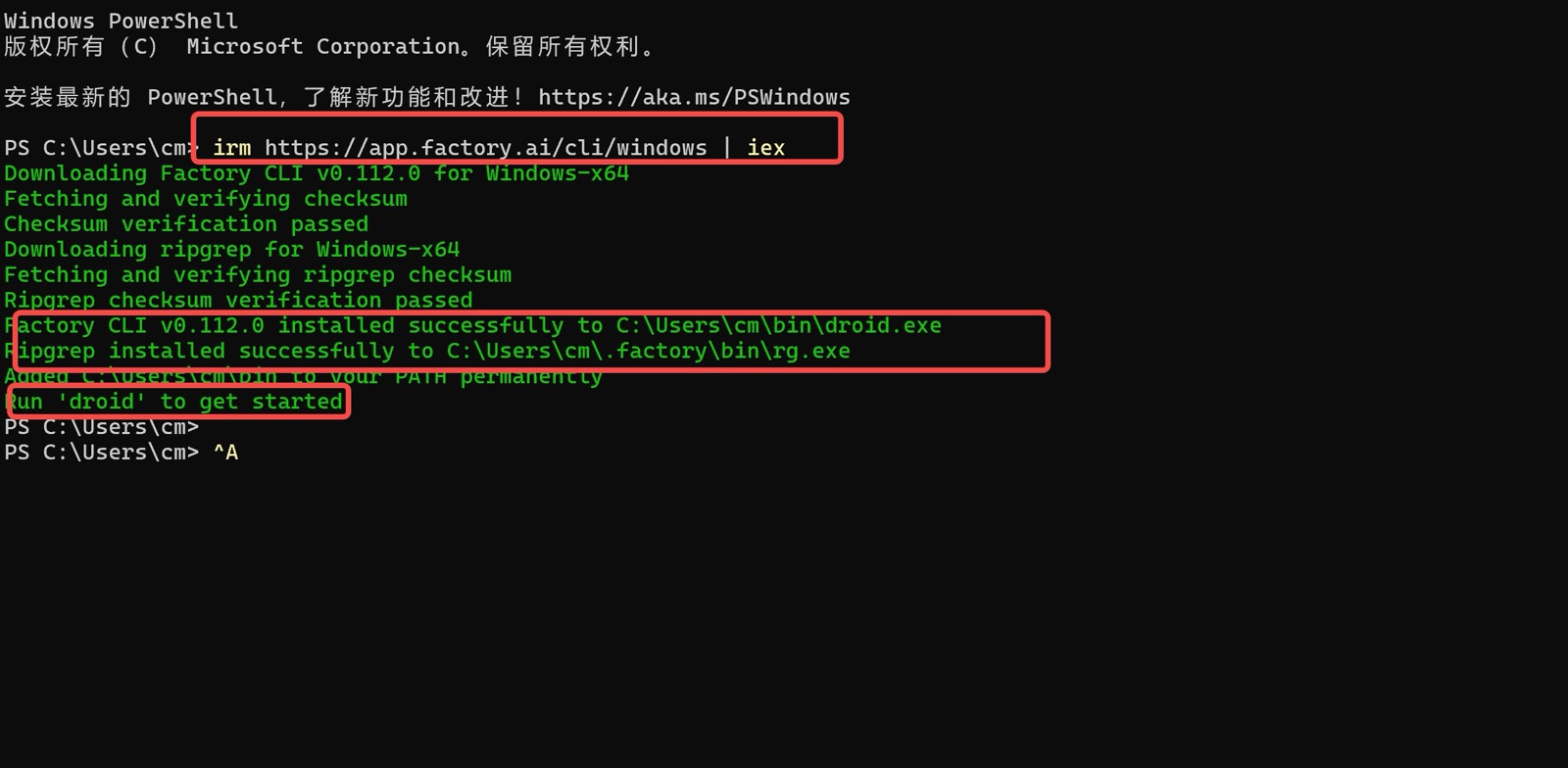
2. Modify the configuration file
Using a third-party API with Droid CLI requires modifying the configuration file.
Modify the environment variables
curl -fsSL https://your-domain/cli/install.sh | sh3. Start using Droid CLI
Now you can start using Droid CLI!
Launch Droid CLI
Launch Droid CLI directly:
droidUse it within a specific project:
# Enter your project directory
cd C:\path\to\your\project

# Launch Droid CLI
droid
Press Enter to launch Droid CLI.
Droid CLI requires you to log in with an official account (free) before use.
4. Common Windows troubleshooting
"permission denied" error during installation
This is usually a permissions issue. Try the following solutions:
- Run PowerShell as administrator
- Or configure
npmto use a user directory:npm config set prefix %APPDATA%\npm
PowerShell execution policy error
If you run into execution policy restrictions, run:
Set-ExecutionPolicy -ExecutionPolicy RemoteSigned -Scope CurrentUsermacOS/Linux: Step-by-Step Guide
1. Install Droid CLI
Install Droid CLI
Open a terminal and run the following command:
curl -fsSL https://app.factory.ai/cli | sh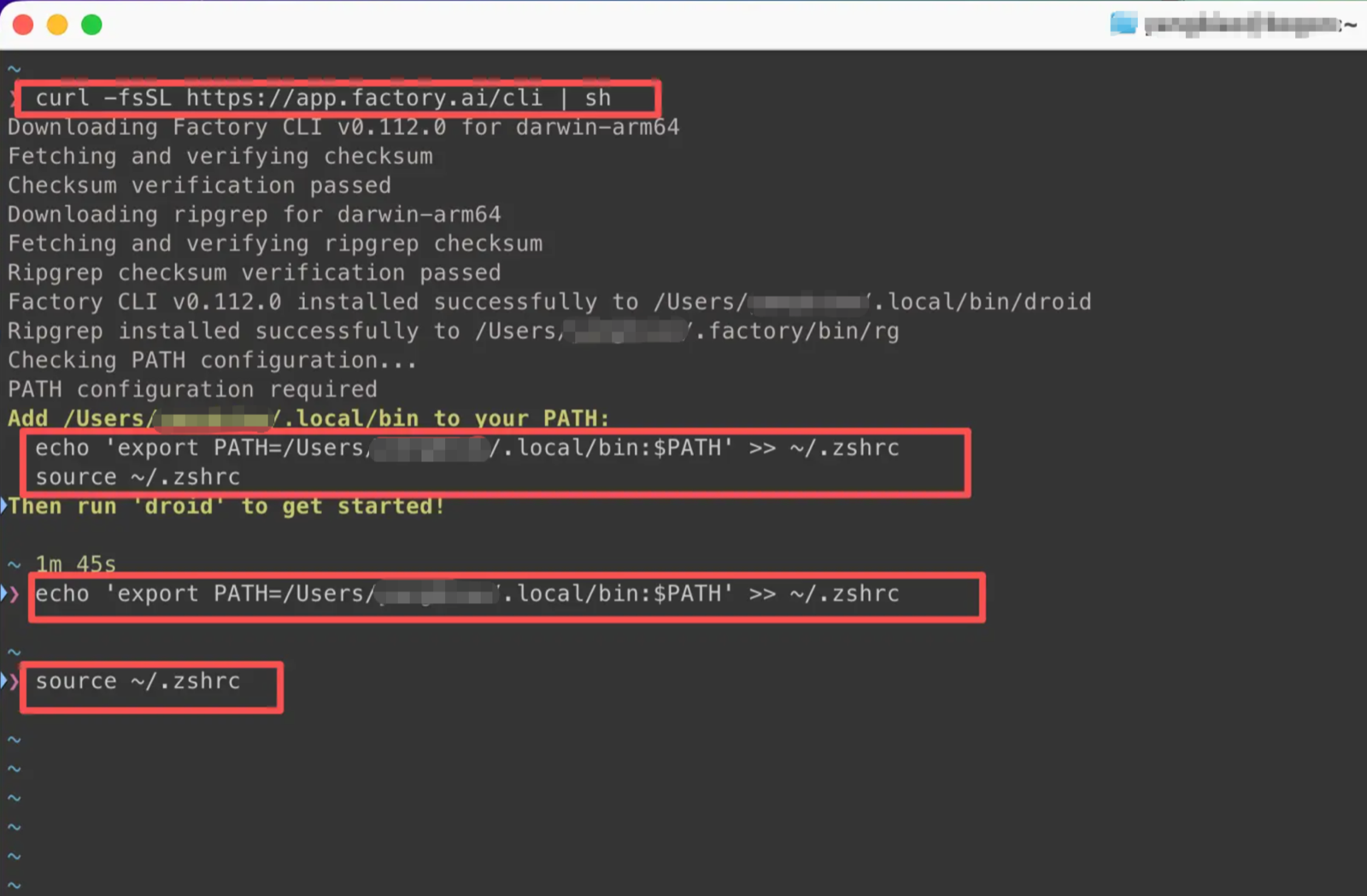
Follow the installation prompts to modify the environment variables (just copy the code shown in the install prompt):
On Linux, choose ~/.bashrc or ~/.zshrc as appropriate.
Droid CLI environment variables (example only)
echo 'export PATH=/Users/your-username/.local/bin:$PATH' >> ~/.zshrc
source ~/.zshrc
2. Modify the configuration file
Using a third-party API with Droid CLI requires modifying the configuration file.
One-click modification of the configuration file
curl -fsSL https://your-domain/cli/install.sh | sh3. Start using Droid CLI
Now you can start using Droid CLI!
Launch Droid CLI
Launch Droid CLI directly:
droidUse it within a specific project:
# Enter your project directory
cd /path/to/your/project

# Launch Droid CLI
droid
Press Enter to launch Droid CLI.
Droid CLI requires you to log in with an official account (free) before use.