Cursor
An AI-native code editor that can connect to model services via a custom Base URL.
Only Cursor Pro or higher subscribers can configure custom models and a custom Base URL; the free tier will throw an error.
Install Cursor
Go to the Cursor website to download and install.
Configure Models Hub
Open Settings
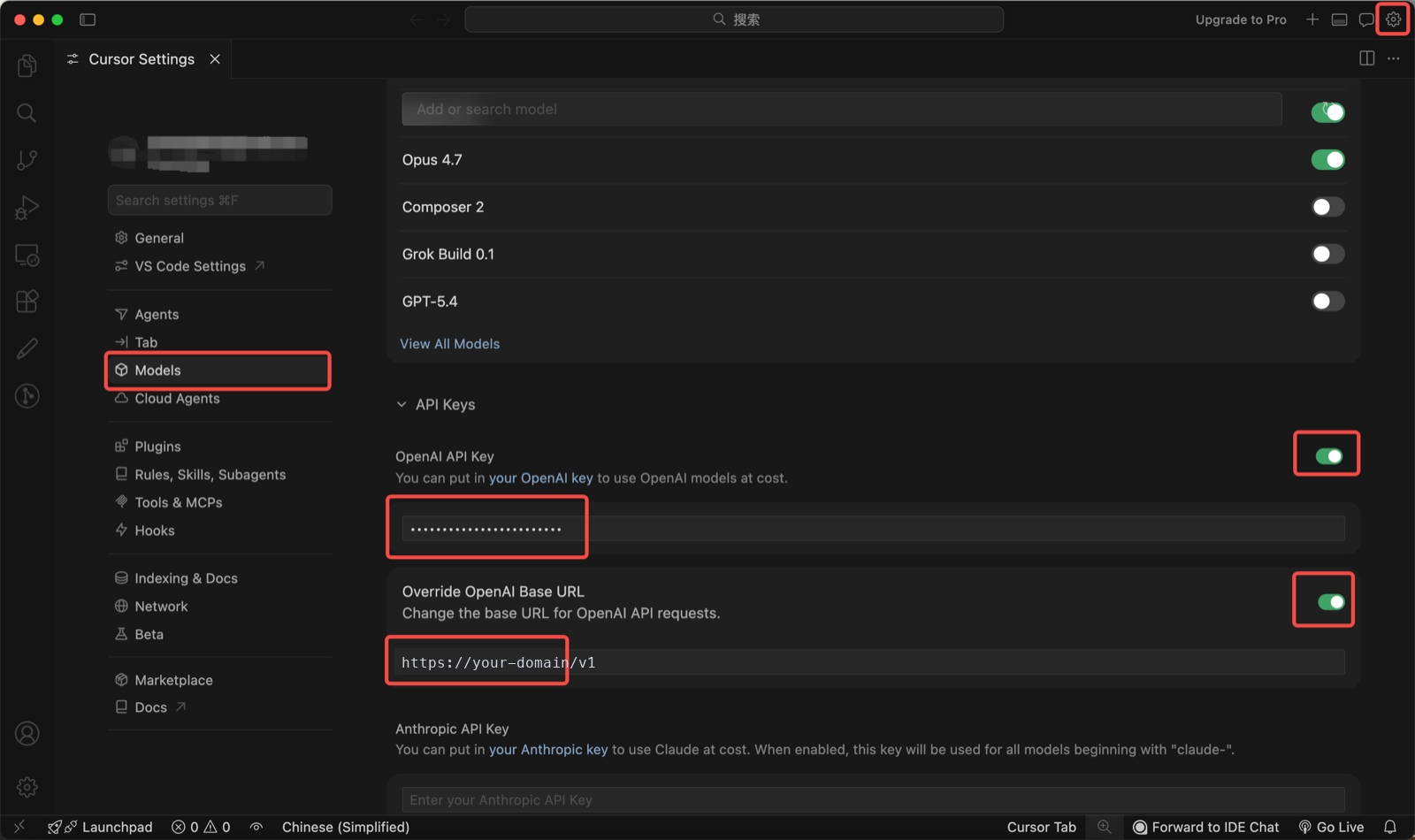
In Cursor, click the settings icon (the gear in the top-right corner) → Cursor Settings → the Models page.
Configure the API Key and Base URL
-
Enable OpenAI API Key and enter your Models Hub token (API Key).
-
Enable Override OpenAI Base URL and enter:
https://modelsok.com/v1
Add a Model
In the Add or search model input box, enter the name of the model you want to use (for example, gpt-4o, claude-3-5-sonnet, etc.), then click Add Custom Model.
Start Using
Select the corresponding model in the chat panel to start using it.
💡 Configuration Screenshot
Below is a reference screenshot after the configuration is complete:
FAQ
Error The model xxx does not work with your current plan or api key.
You're currently using the free version of Cursor, which does not support custom models. Please upgrade to Cursor Pro or higher.