CC Switch
One-click management of Provider, MCP, and prompt configurations for Claude, Codex, and Gemini CLI.
🔀 CC Switch is an open-source, cross-platform unified management tool for AI CLIs. It supports one-click Provider switching, unified MCP server management, system prompt management, and Skills extension management for Claude Code, Codex, and Gemini CLI, letting you switch freely between multiple AI coding assistants without manually editing configuration files.
- GitHub repository: https://github.com/farion1231/cc-switch
- Download: GitHub Releases
Key Features
🔌 Provider management
- One-click switching — Switch between the API configurations of Claude Code, Codex, and Gemini with a single click, without manually changing environment variables or configuration files
- Multi-endpoint support — Each Provider can be configured with multiple endpoints, with API Key management and latency speed testing
- 4-tier model configuration — Supports four levels of model granularity: Haiku / Sonnet / Opus / Custom
🛠️ MCP server management
- Unified cross-app management — Manage the MCP servers of Claude, Codex, and Gemini from a single panel
- Three transport types — Supports stdio, HTTP, and SSE (Server-Sent Events)
- Auto sync — Unified import/export + two-way sync
💬 Prompts management
- Multiple preset system prompts — Unlimited presets with quick switching
- Cross-app support — Claude (
CLAUDE.md), Codex (AGENTS.md), Gemini (GEMINI.md) - Markdown editor — CodeMirror 6 + live preview
🌐 Multi-platform support
- Desktop app — Native installers for Windows, macOS, and Linux
- Web version — A browser-based access option for headless servers / remote SSH environments
- CLI version — Supports both interactive command-line mode and command mode
How to Connect to Models Hub
CC Switch supports the ccswitch:// Deep Link protocol, allowing one-click import of Provider configurations from the Models Hub token management page.
Configuration steps
-
On the Models Hub token management page, click the dropdown menu of the corresponding token. Select the CC Switch option from the menu, and the system will automatically launch the CC Switch app and open a configuration dialog.
-
Complete the configuration in the dialog
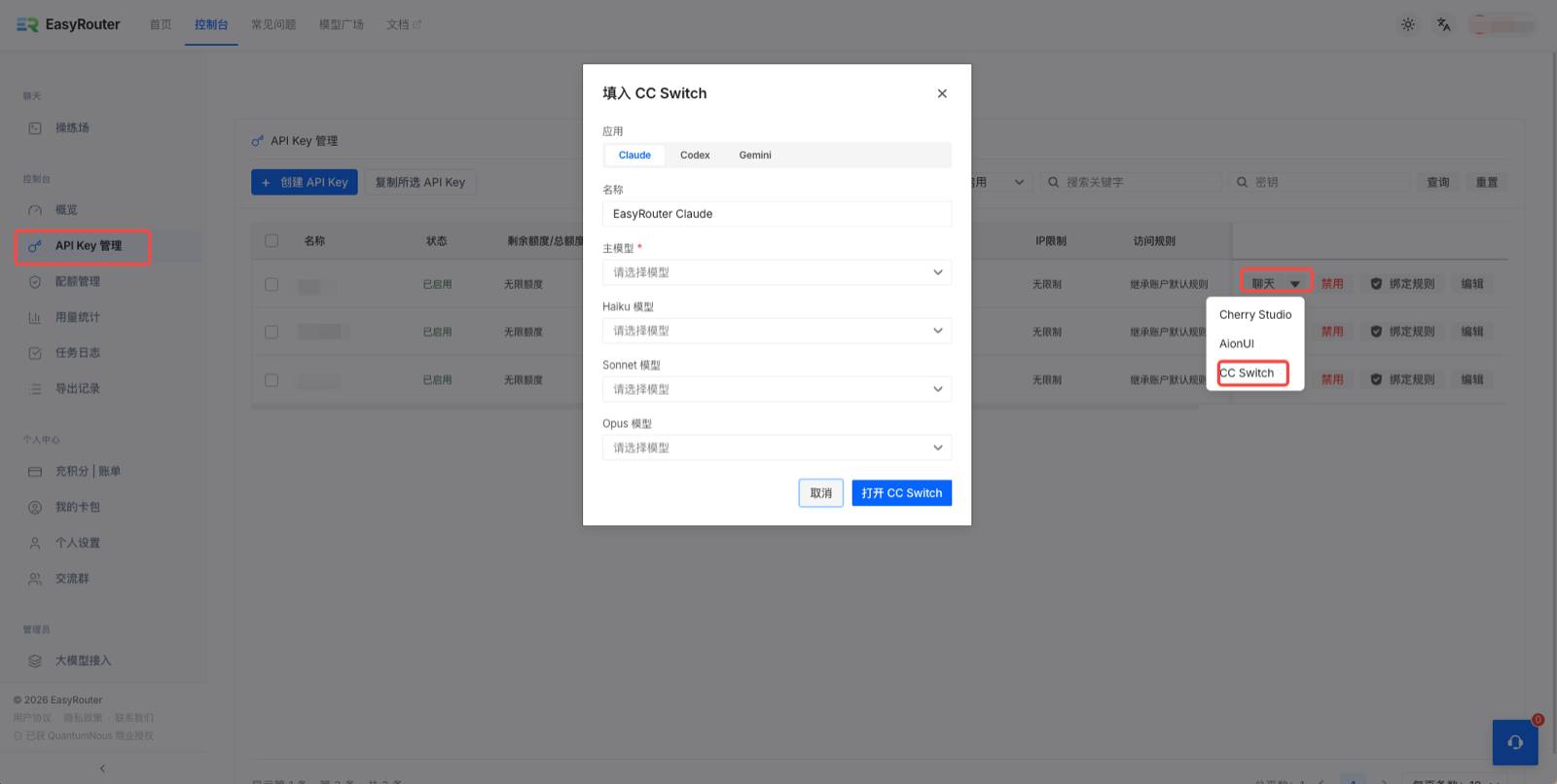
Explanation of each field in the dialog:
- App: Switch the app type at the top — Claude / Codex / Gemini; select the target app as needed
- Name: Enter a name for this configuration (e.g.,
My Claude) so you can easily identify and switch it later in CC Switch - Main model (required) — The primary model used by default
- Haiku model — A lightweight, fast model
- Sonnet model — A balanced model
- Opus model — The most powerful model
All models are selected from dropdowns; when none is selected, "Please select a model" is shown.
-
Finish the configuration After clicking "Open CC Switch", the system automatically launches the CC Switch client and displays an import confirmation dialog:
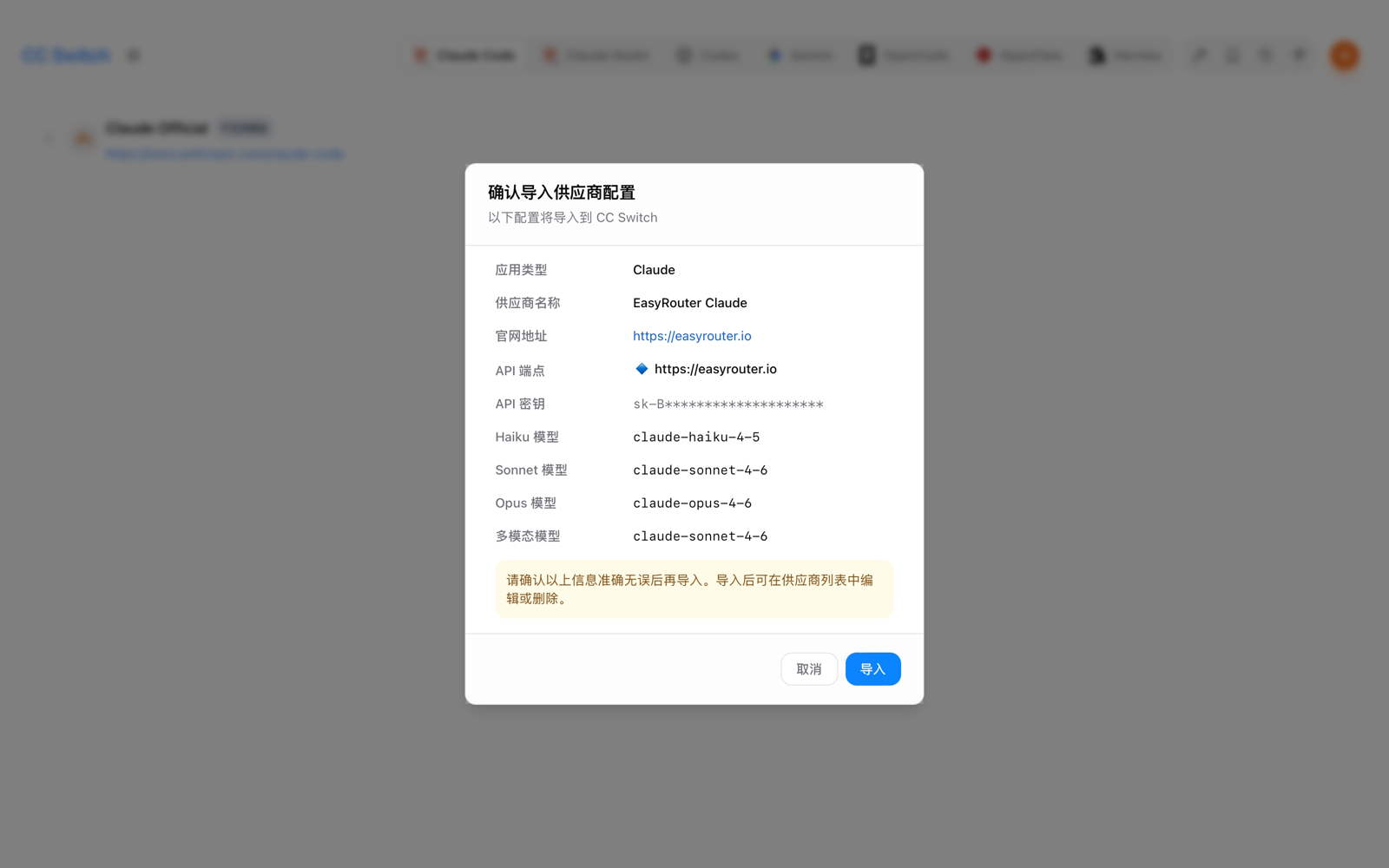
Click "Import" to complete the final connection, or click "Cancel" to abort.
Installation
macOS (Homebrew recommended)
brew tap farion1231/ccswitch
brew install --cask cc-switch
Windows
Download the .msi installer or the portable .zip from Releases.
Linux
Download the .deb package or the .AppImage from Releases.
For Arch Linux users:
paru -S cc-switch-binWeb version (headless / SSH server)
wget https://github.com/farion1231/cc-switch/releases/latest/download/cc-switch-web-linux-x64.tar.gz
tar -xzf cc-switch-web-linux-x64.tar.gz
cd cc-switch-web/
./cc-switch-web
The default port is 17666. Access it in your browser at http://localhost:17666.